


Smart Cropping
Introduction
Smart Cropping is a feature that automatically converts a landscape video into any target aspect ratio while keeping the most important subjects visible and centered throughout the clip. Qencode analyzes your video, tracks subjects across scenes, and re-encodes the output at the ratio you specify.

Enable Smart Cropping
Smart Cropping is enabled by adding smart_crop: 1 and an aspect_ratio to the output format in your transcoding job. Use the /v1/start_encode2 method to launch a transcoding job.
To customize tracking behavior, add the optional smart_crop_mode and smart_crop_method parameters to the same format object.
Request example
{
  "query": {
    "encoder_version": 2,
    "source": "YOUR_VIDEO_URL",
    "format": [
      {
        "output": "mp4",
        "aspect_ratio": "9:16",
        "smart_crop": 1,
        "smart_crop_mode": "responsive",
        "smart_crop_method": "adaptive",
        "destination": [
          {
            "url": "YOUR_STORAGE_URL",
            "key": "YOUR_KEY",
            "secret": "YOUR_SECRET"
          }
        ]
      }
    ]
  }
}- On the Transcode Media page choose MP4, HLS or MPEG-DASH as an output format.
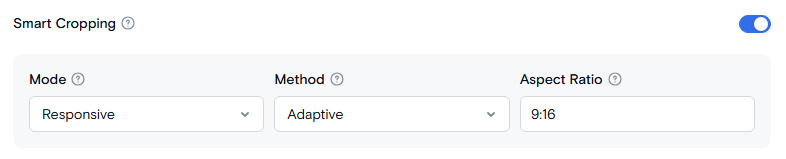
- Enable Smart Cropping by turning on the toggle.
- Select a Mode to control camera smoothing. Use Stable for interviews and talking heads, Responsive for action and sports, or Balanced for general content.
- Select a Method to control which subjects the AI prioritizes. Leave it set to Adaptive if you are unsure - it selects the best tracking strategy per frame automatically.
- Set the Aspect Ratio field to your target aspect ratio - for example 9:16 for vertical video, 1:1 for square, or 4:5 for Instagram feed.
Output Settings
| Parameter | Description |
|---|---|
| smart_crop | Enables or disables intelligent subject-aware cropping for an output format. Accepted values: 1 - to enable, 0 - to disable. Default: 0. |
| aspect_ratio | Target aspect ratio in width:height format. For example: 9:16, 1:1, 4:5. Any integer pair is valid. Default: 9:16 |
| smart_crop_mode | Camera smoothing preset. Options: stable, balanced, responsive. Default: responsive. |
| smart_crop_method | Subject tracking strategy. Options: adaptive, single_object, talking_person, max_weight, max_movement, gravity. Default: adaptive. |
Camera Modes
The Mode setting controls how quickly and smoothly the crop window follows subjects. A wider dead zone means the camera holds still unless subjects move significantly off-center.
- Stable - The camera moves very little, only repositioning when a subject drifts well outside the center zone. Produces static, professional-looking output. Best for sit-down interviews and talking heads.
- Balanced - A middle ground between Stable and Responsive. The camera follows subjects at a moderate pace. Good for vlogs, corporate video, and general-purpose content.
- Responsive - The camera reacts quickly to subject movement. Best for action content, sports, and multi-subject scenes. This is the default setting.
Tracking Methods
The Method setting controls which subjects the AI prioritizes when computing the crop position each frame.
- Adaptive - Automatically selects the best strategy per frame. Tracks one dominant person when present, maximizes subject coverage when people are spread out, and defaults to a weighted center otherwise. Best for batch processing or when content type is unknown.
- Single object - Tracks the single largest person in the frame, ignoring all others. Use this for solo presentations, one-on-one interviews, or any content with one clear main subject.
- Talking person - Detects who is speaking by analyzing mouth movement and keeps that person centered. Falls back to the largest visible person if no speech is detected. Best for podcasts, panel discussions, and multi-speaker interviews.
- Max weight - Finds the crop window that keeps as many subjects visible as possible. Use this when people are spread across a wide frame and you want to maximize how many remain in shot.
- Max movement - Gives priority to the fastest-moving subjects in the frame. Best for sports coverage, action sequences, and dance performances.
- Gravity - Computes a weighted center of mass across all detected subjects. Simple and predictable. Works well for content with a single subject or a tight group that stays together.
Need More Help?
For additional information, tutorials, or support, visit the Qencode Documentation page or contact Qencode Support at support@qencode.com.